The Asus laptop speaker may sometimes produce low sound, crackle, or stop working entirely. Before considering a replacement, it is recommended to check whether the issue is caused by a software setting, an audio driver, or a hardware failure.
If, after checking, the issue is indeed coming from the internal speaker of your Asus laptop, it can be replaced relatively easily with the right tools and by following the appropriate steps.
To access the speakers of your Asus laptop, you need to unscrew the bottom case located underneath the device.
What are the signs of a faulty speaker?
Some symptoms may indicate that it is necessary to replace the speaker of your Asus laptop:
very low or muffled sound,
crackling sound,
no sound at all,
only one speaker working,
unusual vibrations or distortion.
If the sound works properly with headphones but not with the built-in speakers, the issue is likely hardware-related.
How to test Asus laptop speakers?
Before disassembling your device, you can perform a few simple checks:
make sure the system volume is not muted,
test sound with headphones or earphones,
use the Windows audio troubleshooter,
check audio drivers in Device Manager.
If the issue persists after these tests, replacing the internal laptop speaker may be necessary.
Tools required to replace an Asus speaker
For disassembly and reassembly of the speakers in your Asus laptop, you will need:
a tool kit with various screwdriver bits (Phillips or Torx),
a plastic pry tool,
For this guide, we will use the example of S712 series speakers.
Locate the speakers on your Asus laptop
The first step is to identify the location of the speakers in your Asus laptop and the routing of the cables.
In most models, speakers are installed as a pair:
a left speaker,
a right speaker,
These two modules are usually connected by separate cables. The cables may be braided together to make installation and positioning easier inside the laptop.
These cables then connect to a power connector clipped onto the motherboard.
Cable management inside the laptop
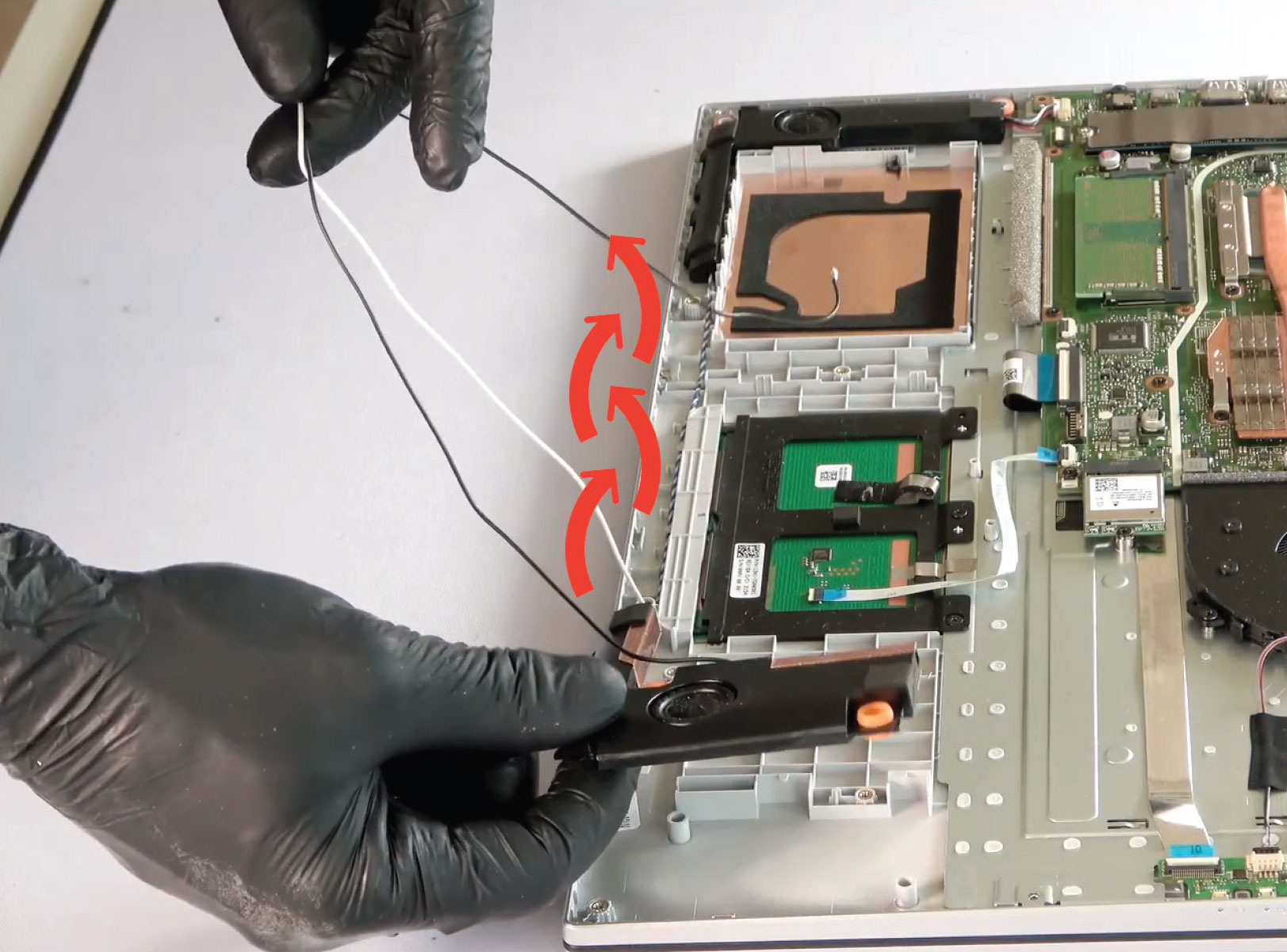
In this example series, the antennas and WiFi cables are integrated into the left speaker.
They run around the battery, while the speaker power cables (white and black braided wires) run along the touchpad under the battery.
Cable routing guides are present to keep everything properly in place. They prevent wires from moving or being pinched during reassembly.
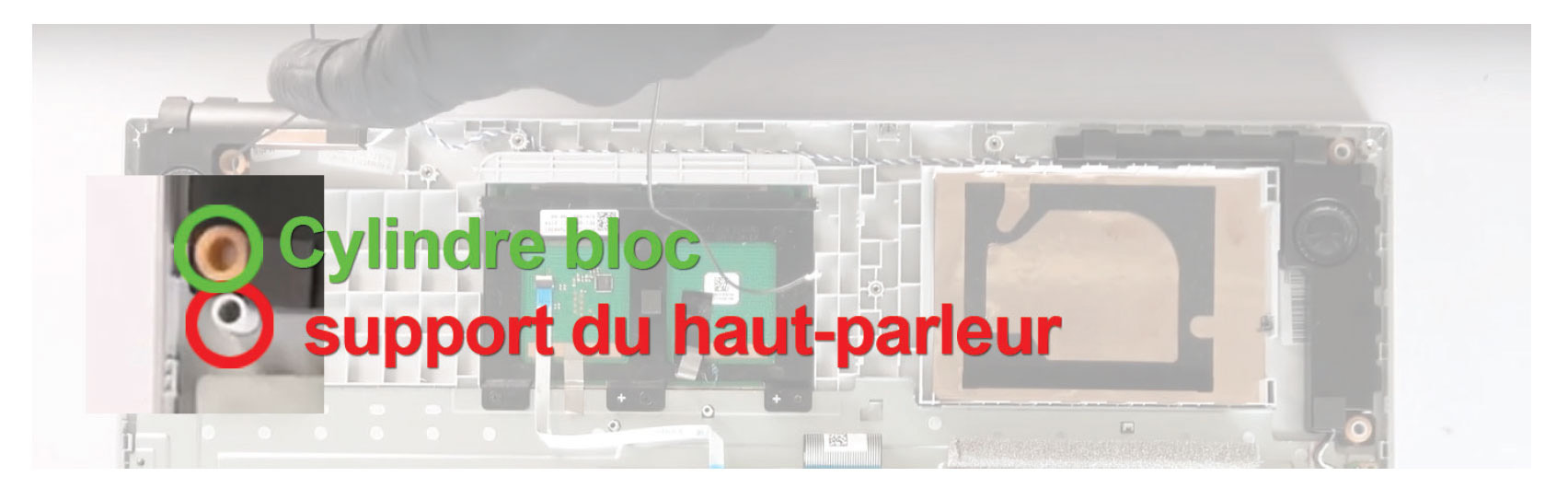
The speakers usually sit in place thanks to rubber support blocks. On some Asus models, they may also be secured with screws.
This system helps absorb vibrations and prevents movement of the audio module.
Once the cables are removed, take one of the speaker modules and slide it upward to remove it from its rubber mounts.
Then unroute the cables from their guides to reach the second speaker and remove it as well.
Reassembling the speakers
To install the new Asus laptop speaker, simply follow the disassembly steps in reverse order:
place the speaker back into its mounts
reposition the cables in their guides
reconnect the power cable to the motherboard
reconnect the WiFi cables
put the battery back in place
close the bottom case
Once the laptop is reassembled, test the sound to ensure that the left and right speakers are working properly.
Where to find a compatible Asus laptop speaker?
Each Asus laptop model (Vivobook, Chromebook, Zenbook, TUF Gaming and ROG) has a specific internal speaker reference. To ensure compatibility, it is recommended to check:
the exact model of your Asus laptop,
the serial number of your device,
the original part reference.
FAQ – Asus laptop speaker
Why is my Asus laptop sound low?
Low sound can be caused by a software setting, a faulty audio driver, or a damaged internal speaker.
How do I know if my laptop speaker is faulty?
If the sound crackles, disappears completely, or works only on one side, the speaker may be defective.
Can a laptop internal speaker be repaired?
In most cases, it is better to replace the speaker module directly to restore optimal sound quality.
How to check compatibility of an Asus speaker?
Compatibility depends on the exact laptop model. The serial number or part reference allows identification of the correct speaker. To find the compatible part for your Asus device, check this page.
If the sound of your Asus laptop is weak or absent, the internal speaker may be defective.
In this case, it is possible to easily replace the speaker with a compatible part.
See Asus laptop speakers available on our website. We also offer second-life Asus speakers , sourced from disassembled and tested devices. These parts provide a more cost-effective and eco-friendly repair solution, while maintaining genuine Asus quality.